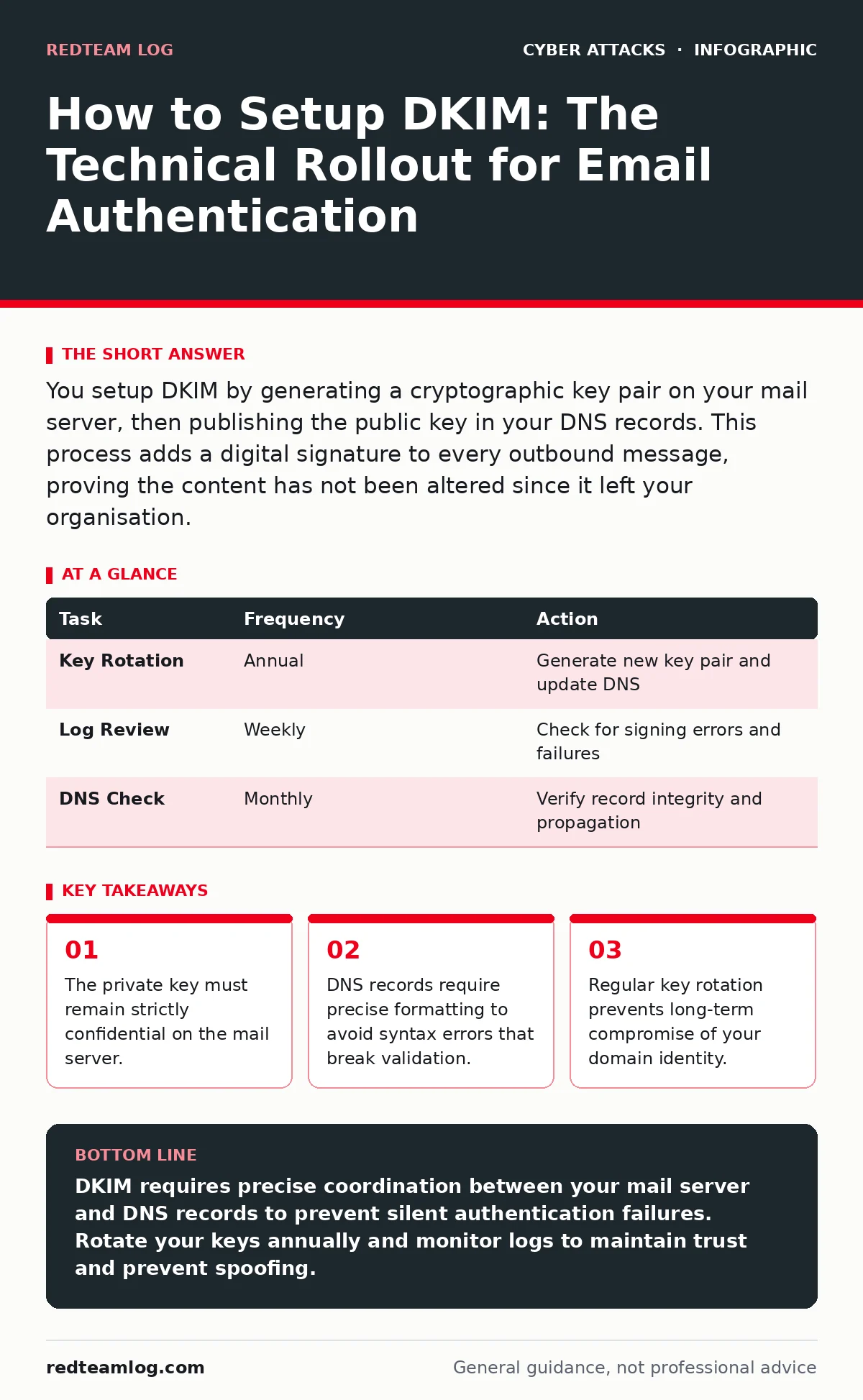
You setup DKIM by generating a cryptographic key pair on your mail server, then publishing the public key in your DNS records. This process adds a digital signature to every outbound message, proving the content has not been altered since it left your organisation.
Why You Need DKIM for Domain Integrity
Email protocols were designed for trust, not security. A sender address is merely a text string that anyone can forge. DomainKeys Identified Mail (DKIM) changes this dynamic by attaching a cryptographic signature to the email header. This signature acts as a seal. When a recipient server receives the message, it retrieves your public key from the DNS system and verifies the seal. If the seal is broken, the message is rejected or marked as suspicious. This mechanism prevents attackers from easily impersonating your domain. It does not protect against social engineering red flags, but it stops basic spoofing.
Imagine an attacker sends a message claiming to be from your finance department. Without DKIM, the recipient server sees only the forged header. With DKIM, the server checks the cryptographic proof. The proof fails because the attacker does not possess your private key. The message is flagged as unauthenticated. This distinction is vital for maintaining sender reputation and ensuring your legitimate communications reach the inbox.
Preparation Before You Setup DKim
You cannot configure DKIM without administrative access to two systems: your mail transfer agent and your domain name server. The mail server holds the private key. The DNS server holds the public key. These two components must match exactly. A mismatch causes verification failures. You must also determine your selector. A selector is a short string that tells the recipient server which specific key to look for in your DNS records. Choose a selector that is unique to your current infrastructure. Avoid generic names like "default". Use a combination of letters and numbers that identifies the server or the year of deployment.
Check your current DNS zone for existing DKIM records. Old records from decommissioned servers can cause conflicts. Remove any stale entries before proceeding. Ensure your DNS provider supports TXT records with long values. Some registrars truncate records that exceed 255 characters. DKIM public keys often exceed this limit. You may need to split the key into multiple parts or use a provider that handles long strings automatically.
Step 1: Generate the Key Pair
Access your mail server command line or administration panel. Run the key generation command provided by your mail software. This command creates two files: a private key and a public key. The private key stays on the server. The public key goes into your DNS. Store the private key in a secure directory with restricted permissions. Only the mail service account should have read access. If an attacker gains access to the private key, they can sign malicious emails that appear authentic. This is a critical security boundary.
Verify the key format. Most systems use Base64 encoding. Ensure the output does not contain line breaks unless the system specifically requires them. Copy the public key to a secure text file. Do not paste it directly into a web browser or chat application. This prevents accidental exposure of sensitive data. Keep the private key file safe. You will need it for future rotations or server migrations.
Step 2: Publish the Public Key in DNS
Log in to your DNS management console. Create a new TXT record. The host name for this record is the selector followed by a dot and "._domainkey". For example, if your selector is "mail1", the host is "mail1._domainkey". The value is the public key string. Paste the key carefully. Remove any quotation marks or extra spaces that the generation tool might have added. Incorrect formatting causes the recipient server to fail the lookup.
Some DNS providers require you to split the key into two or more records. Follow the provider's instructions for concatenation. The final result must be a single continuous string when retrieved by a DNS query. Save the changes. DNS propagation can take time. Wait for the changes to propagate before testing. You can check propagation using public DNS lookup tools. Ensure the record is visible globally.
Step 3: Configure the Mail Server
Edit the mail server configuration file. Add the directive that enables DKIM signing. Specify the path to the private key file. Set the selector to match the DNS record you created. Restart the mail service to apply the changes. The service must reload the configuration to pick up the new key. Check the server logs for errors. Look for messages indicating that the key was loaded successfully. If the service fails to start, review the configuration syntax.
Send a test email to an external address. Use a disposable email account for this test. Check the headers of the received message. Look for the "DKIM-Signature" header. Its presence confirms that the server is signing outgoing mail. Absence of this header indicates a configuration error. Review the server logs again. Ensure the private key path is correct and the permissions are set properly.
How to Check It Worked
Verification requires inspecting the email headers. Most email clients allow you to view the original message source. Look for the "Authentication-Results" header added by the recipient server. This header states whether the DKIM check passed or failed. A "pass" status means the signature is valid. A "fail" status indicates a mismatch or modification. A "none" status means no signature was found.
Use online verification tools to double-check the result. Paste the raw email headers into the tool. The tool will parse the DKIM signature and compare it against the DNS record. This provides a second opinion on the authentication status. If the tool reports a failure, review the DNS record for typos. Common errors include missing characters or incorrect line breaks.
Upkeep and Key Rotation
DKIM keys are not set and forget. You must rotate them periodically. Rotation involves generating a new key pair and updating the DNS record. The old key remains active for a transition period. This ensures that emails signed with the old key are still verified during the switch. After the transition period, remove the old DNS record. This limits the damage if a private key is compromised.
Monitor your email delivery rates. Sudden drops in delivery can indicate a DKIM failure. Check your server logs for signing errors. Investigate any alerts from your security operations centers regarding authentication failures. Regular maintenance ensures your domain remains trusted by recipient servers.
| Task | Frequency | Action |
|---|---|---|
| Key Rotation | Annual | Generate new key pair and update DNS |
| Log Review | Weekly | Check for signing errors and failures |
| DNS Check | Monthly | Verify record integrity and propagation |
Common Pitfalls to Avoid
One common error is modifying the email content after signing. Some email clients or forwarding services add footers or change formatting. These changes break the cryptographic signature. The recipient server sees a modified message and rejects the signature. Configure your mail server to sign the message after all processing is complete. This ensures the final content matches the signature.
Another pitfall is ignoring SPF. DKIM and Sender Policy Framework (SPF) work together. SPF verifies the sending IP address. DKIM verifies the content. Both are required for full authentication. If you setup DKIM but neglect SPF, attackers can still spoof your domain using different methods. Implement both protocols for maximum protection. This layered approach reduces the risk of email spoofing and phishing.
See also: Phishing vs Spam: How to Tell the Difference and Stop Threats · Stop CEO Fraud: Practical Controls That Actually Block Impersonation
Integration with Other Security Measures
DKIM is part of a broader email security strategy. It works alongside DMARC (Domain-based Message Authentication, Reporting, and Conformance). DMARC uses DKIM and SPF results to determine how to handle unauthenticated mail. Without DKIM, DMARC cannot function effectively. Configure DMARC policies to reject or quarantine messages that fail authentication. This prevents attackers from using your domain for spam or phishing campaigns.
Regularly review your incident response plans to include email authentication failures. If you detect a DKIM failure, investigate the source immediately. Check for server compromise or misconfiguration. Update your web filtering rules if necessary. This proactive approach minimises the impact of potential breaches. By integrating DKIM with other security tools, you create a resilient defence against email-based threats.
Key takeaways
- The private key must remain strictly confidential on the mail server.
- DNS records require precise formatting to avoid syntax errors that break validation.
- Regular key rotation prevents long-term compromise of your domain identity.
DKIM requires precise coordination between your mail server and DNS records to prevent silent authentication failures. Rotate your keys annually and monitor logs to maintain trust and prevent spoofing.
Frequently asked questions
What happens if I delete the DKIM DNS record?
Recipient servers will no longer find the public key. They will mark your emails as unauthenticated, which may cause them to be blocked or sent to spam folders.
Can I use DKIM with multiple mail servers?
Yes, but each server needs a unique selector. This allows you to manage keys independently and rotate them without affecting other servers.
How this guide was produced: written by the RedTeam Log editorial team with AI assistance, checked against the public references listed below, and reviewed when the facts change. See our editorial policy or report an error.