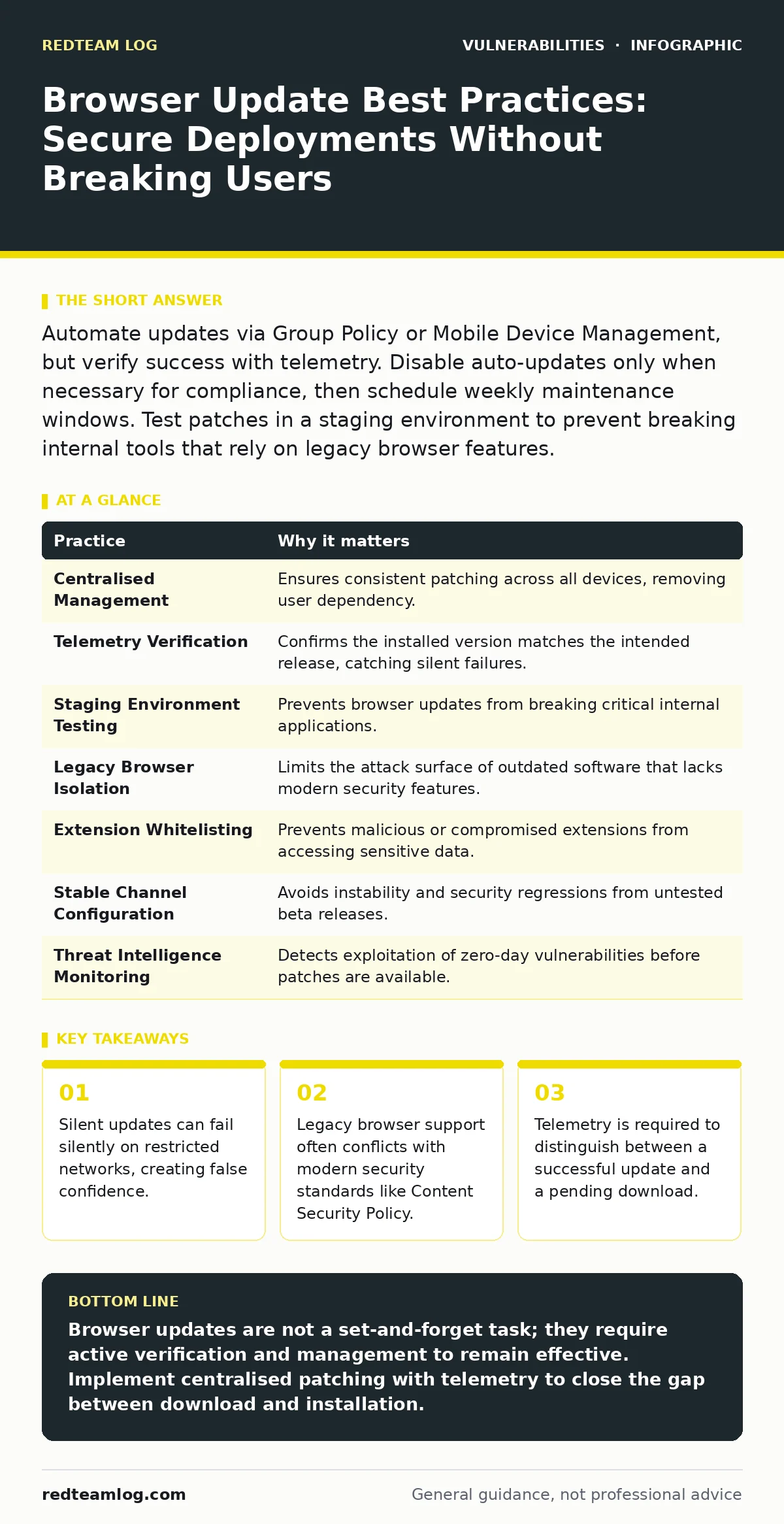
Automate updates via Group Policy or Mobile Device Management, but verify success with telemetry. Disable auto-updates only when necessary for compliance, then schedule weekly maintenance windows. Test patches in a staging environment to prevent breaking internal tools that rely on legacy browser features.
The Illusion of Automatic Safety
You assume your browsers are always current because the vendor promises automatic updates. This assumption is dangerous. Automatic update mechanisms rely on network connectivity, permission levels, and background services that can be blocked by corporate firewalls or endpoint protection agents. When these conditions change, the browser stops updating without notifying the user. The application remains vulnerable to known exploits, yet the interface shows no warning.
1. Enforce Updates via Centralised Management
Relying on individual users to restart their browsers after an update is ineffective. Users ignore these prompts to avoid interrupting their workflow. Instead, you must enforce updates through centralised management tools such as Group Policy on Windows or Mobile Device Management on macOS and iOS. These tools allow you to push updates during defined maintenance windows.
This approach ensures consistency across the organisation. It removes the decision from the end user. You gain visibility into which devices have accepted the patch and which have failed. This control is necessary for maintaining a secure baseline.
2. Verify Installation with Telemetry
An update being downloaded is not the same as an update being installed. You need telemetry to confirm the version running on the endpoint matches the latest stable release. Without this data, you are flying blind. Endpoint detection and response platforms can report browser versions, but you must configure them to alert on deviations from the expected version.
This verification step catches failures that occur during the installation phase. It reveals if a security agent blocked the write operation or if a user permission error prevented the file replacement. You cannot trust the browser’s own status indicator.
3. Isolate Staging Environments for Testing
Browser updates can break internal applications that rely on specific JavaScript behaviours or deprecated APIs. Before pushing an update to the entire workforce, test it in a staging environment. This environment should mirror your production network as closely as possible. Deploy the update to a small group of power users or IT staff first.
Monitor these users for compatibility issues. If a critical internal tool fails, you have time to adjust configurations or delay the rollout. This practice prevents widespread operational disruption. It balances security with business continuity.
4. Manage Legacy Browser Support Carefully
Some organisations still use older browsers for legacy applications. This creates a significant security risk. Older browsers lack modern security features like sandboxing and strict Content Security Policy enforcement. They are also more susceptible to prototype pollution and other modern web attacks.
You must isolate these legacy browsers. Run them in a separate, restricted network segment. Disable unnecessary plugins and limit internet access. Ideally, migrate these applications to modern platforms. Continuing to support outdated browsers increases your attack surface unnecessarily.
See also: Prevent Malicious Browser Extensions: Stop Credential Theft · Vulnerability Remediation SLAs: Prioritise Risk, Not Just Dates
5. Restrict Plugin and Extension Permissions
Browser extensions have deep access to browser data. A compromised extension can steal credentials, bypass security controls, and exfiltrate data. You must restrict which extensions users can install. Use management tools to whitelist only approved extensions. Block the ability for users to install extensions from the web store.
This restriction reduces the risk of supply chain attacks via malicious extensions. It also prevents users from installing ad-blockers or privacy tools that may interfere with monitoring solutions. You maintain control over the browser environment.
6. Configure Automatic Update Channels
Vendors offer different update channels. Stable channels receive tested updates. Beta or dev channels receive early updates that may contain bugs. You should configure your browsers to use the stable channel only. Beta updates can introduce instability and security regressions.
Using the stable channel ensures that updates have undergone rigorous testing. It reduces the likelihood of encountering critical bugs in production. You sacrifice early access to new features for reliability and security. This trade-off is worth it for most organisations.
7. Disable Auto-Updates Only When Necessary
Some compliance standards require disabling auto-updates to maintain a static environment for auditing. If you must disable auto-updates, you create a manual patching burden. You must schedule regular, strict maintenance windows to apply patches. Failure to do so leaves systems exposed for extended periods.
Consider the risk of this approach. Manual updates are prone to human error. You must have a robust process for verifying and applying patches. If possible, negotiate with auditors to allow automated updates with logging. Automation is generally more secure than manual processes.
8. Monitor for Zero-Day Exploits
Even the latest browser version can contain zero-day vulnerabilities. These are unknown flaws that attackers exploit before vendors release patches. You must monitor threat intelligence feeds for emerging browser exploits. Implement network-based detection rules to identify exploit attempts.
This monitoring complements your patching strategy. It provides early warning of attacks targeting unpatched flaws. You can block malicious traffic at the firewall or web proxy level. This adds a layer of defence in depth.
9. Educate Users on Phishing Vectors
Technical controls alone cannot stop all attacks. Users remain the weakest link. Phishing emails often exploit browser vulnerabilities or trick users into downloading malicious payloads. You must educate users on recognising phishing attempts. Teach them to verify URLs and report suspicious emails.
This education reduces the success rate of social engineering attacks. It complements your technical controls. Regular training reinforces safe browsing habits. You create a culture of security awareness.
| Practice | Why it matters |
|---|---|
| Centralised Management | Ensures consistent patching across all devices, removing user dependency. |
| Telemetry Verification | Confirms the installed version matches the intended release, catching silent failures. |
| Staging Environment Testing | Prevents browser updates from breaking critical internal applications. |
| Legacy Browser Isolation | Limits the attack surface of outdated software that lacks modern security features. |
| Extension Whitelisting | Prevents malicious or compromised extensions from accessing sensitive data. |
| Stable Channel Configuration | Avoids instability and security regressions from untested beta releases. |
| Threat Intelligence Monitoring | Detects exploitation of zero-day vulnerabilities before patches are available. |
| User Education | Reduces the success rate of phishing attacks that bypass technical controls. |
Key takeaways
- Silent updates can fail silently on restricted networks, creating false confidence.
- Legacy browser support often conflicts with modern security standards like Content Security Policy.
- Telemetry is required to distinguish between a successful update and a pending download.
Browser updates are not a set-and-forget task; they require active verification and management to remain effective. Implement centralised patching with telemetry to close the gap between download and installation.
Frequently asked questions
How often should I check for browser updates?
With centralised management, updates should be pushed automatically. You should review telemetry weekly to ensure all devices are compliant.
Can I disable auto-updates for better security?
Disabling auto-updates increases risk by creating manual patching delays. Only do this if required by specific compliance mandates, and compensate with strict manual schedules.
Do browser updates protect against all web threats?
No. Updates fix known software flaws. They do not protect against phishing, social engineering, or application-level vulnerabilities like NoSQL injection or insecure direct object references (IDOR).
How do I handle internal apps that break after an update?
Test updates in a staging environment first. If an app breaks, isolate the legacy browser requirement or work with developers to update the application to support modern standards.
How this guide was produced: written by the RedTeam Log editorial team with AI assistance, checked against the public references listed below, and reviewed when the facts change. See our editorial policy or report an error.