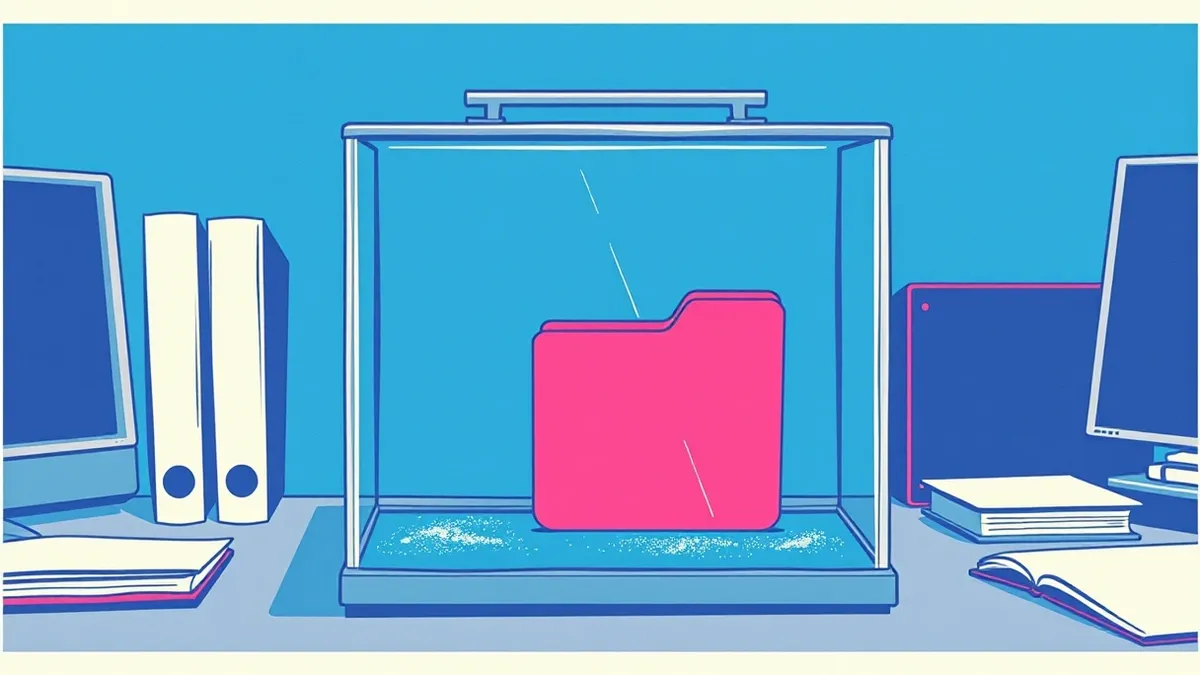
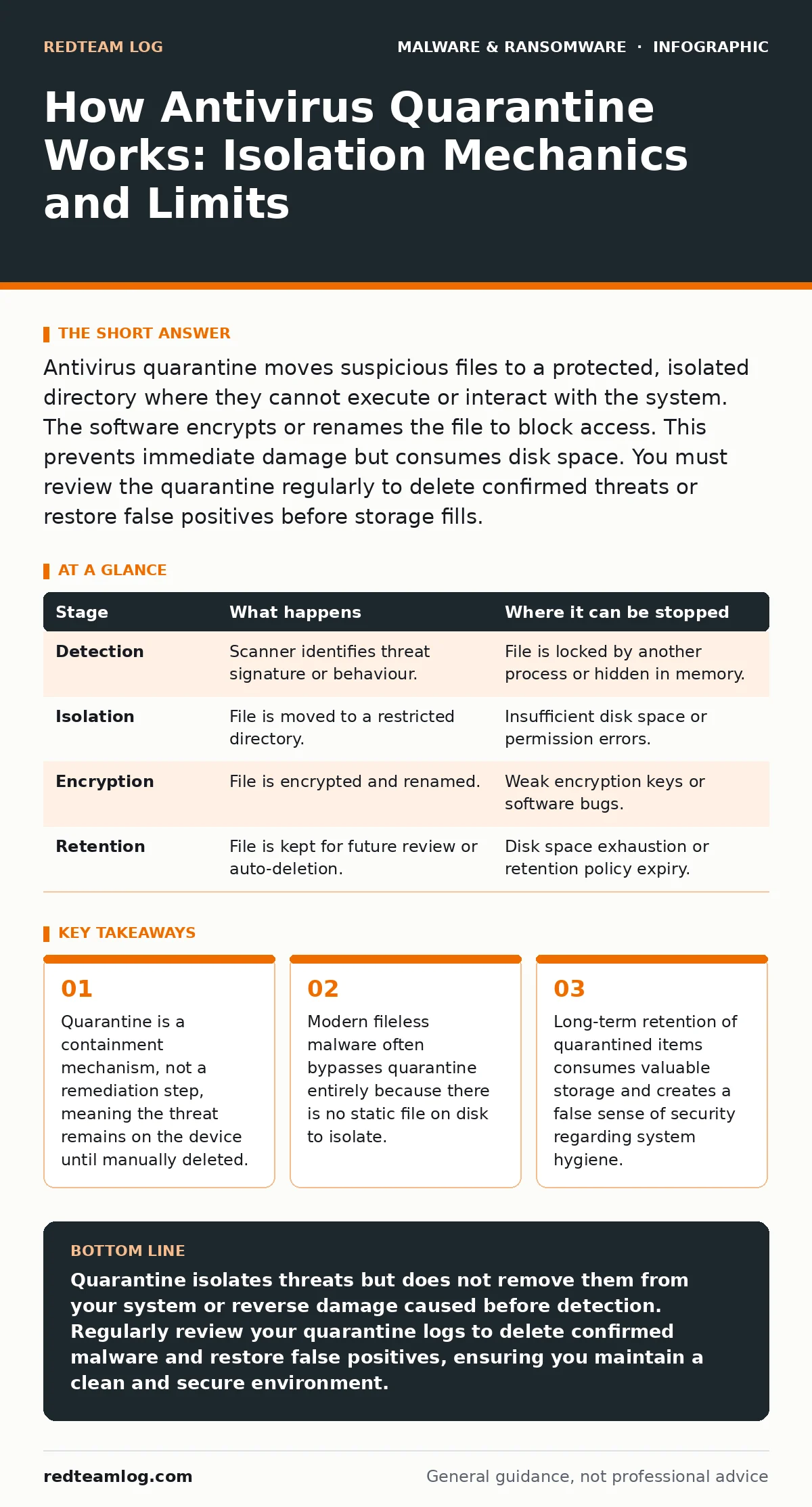
Antivirus quarantine moves suspicious files to a protected, isolated directory where they cannot execute or interact with the system. The software encrypts or renames the file to block access. This prevents immediate damage but consumes disk space. You must review the quarantine regularly to delete confirmed threats or restore false positives before storage fills.
The Quarantine Container
Quarantine is a containment strategy used by endpoint protection software. When a scanner identifies a file matching a known threat signature or exhibiting suspicious behaviour, it moves that file to a restricted location. This location is typically a hidden directory with strict access controls. The operating system prevents any process, including the user, from executing the file from this location.
The file is often renamed with a unique identifier and sometimes encrypted. This encryption ensures that even if an attacker gains administrative privileges, they cannot simply read the raw bytes of the malware to understand its structure. The primary goal is to break the link between the file and the rest of the system. It stops the code from running, but it does not erase the code from existence.
Stage 1: Detection and Triggering
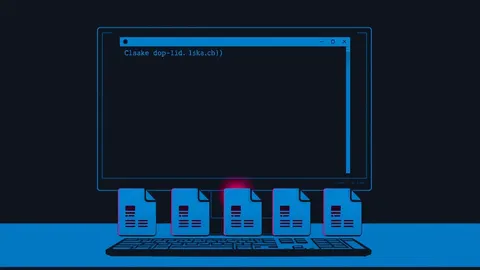
The process begins when the antivirus engine flags a file. This usually happens during a scheduled scan or in real-time as you open or save a document. The engine compares the file’s hash against a database of known malicious indicators. If the match is high confidence, the engine triggers the quarantine routine. If the confidence is low, the file might be flagged for review instead of immediate isolation.
You should understand that detection relies on the scanner’s ability to read the file. If the file is locked by another process, the scanner might skip it. This is a common edge case where threats remain active because the protection software cannot access the file to move it.
Stage 2: Access Restriction and Renaming
Once triggered, the software changes the file’s attributes. It strips the executable permissions and modifies the file extension. For example, a .exe file might become .exe.quarantined. This simple change prevents the operating system from recognising it as a runnable program. The file is then copied to the quarantine directory. The original location may retain a placeholder or be deleted entirely, depending on the software’s configuration.
This step is critical for preventing immediate execution. However, it does not stop the malware if it has already injected itself into a running process in memory. Quarantine only affects the file on disk. If the threat is already active, moving the file does nothing to stop the ongoing attack. This is why endpoint detection and response capabilities are often needed alongside traditional scanning.
Stage 3: Encryption and Metadata Logging
The isolated file is then processed for security. Many solutions encrypt the quarantined file using a key stored within the protection software. This prevents the user or an attacker from analysing the file’s contents. The software also logs metadata about the event. This includes the file path, the time of detection, the threat name, and the action taken. This log is vital for auditing and forensic analysis.
Imagine a scenario where a ransomware variant encrypts your documents before being caught. The quarantine log will show the ransomware executable was isolated. However, if the ransomware had already run, the damage is done. Quarantine stops future execution of that specific file, but it does not reverse actions taken prior to detection. This highlights the limitation of relying solely on quarantine for protection against fast-spreading threats.
Stage 4: Retention and Management
The quarantined file remains on the system until you or an automated policy removes it. Most software retains these files for a set period, such as thirty days, before deleting them automatically. You can also manually delete them to free up space. Retention allows for false positive recovery. If the software mistakenly flags a legitimate application, you can restore it from quarantine.
However, long-term retention carries a hidden cost. Every quarantined file consumes disk space. On systems with limited storage, such as servers or IoT devices, this can become significant. Furthermore, keeping a large number of quarantined files does not improve security. It merely preserves evidence. If you never review the quarantine, you are storing digital clutter that offers no protection.
| Stage | What happens | Where it can be stopped |
|---|---|---|
| Detection | Scanner identifies threat signature or behaviour. | File is locked by another process or hidden in memory. |
| Isolation | File is moved to a restricted directory. | Insufficient disk space or permission errors. |
| Encryption | File is encrypted and renamed. | Weak encryption keys or software bugs. |
| Retention | File is kept for future review or auto-deletion. | Disk space exhaustion or retention policy expiry. |
Reviewing Quarantine Effectively
You should review the quarantine logs regularly. Look for patterns. If the same file is quarantined repeatedly, it might be a false positive caused by a legitimate application. Alternatively, it could indicate a persistent threat that is recreating itself. In the latter case, quarantine alone is insufficient. You need to investigate why the file keeps reappearing.
Consider the nature of the threat. Some malware, such as firmware malware, resides in the hardware’s firmware rather than the main operating system. Traditional file-based quarantine cannot touch these threats because they are not standard files. Similarly, fileless malware operates in memory and leaves no file to quarantine. Understanding these limitations helps you interpret the quarantine logs correctly. If you see many false positives, your antivirus might be too aggressive. If you see none, it might be too passive.
Advanced Quarantine Scenarios
Not all threats behave like standard files. Some malicious browser extensions install code that runs within the browser process. Quarantining the extension’s installation files might remove the extension, but if the browser process is already running, the malicious code might persist until the browser restarts. This is a subtle distinction that often leads to reinfection.
Suppose a script is downloaded and executed directly from the network. This is common in attacks involving malicious PyPI packages or other repository-based threats. The script never exists as a static file on the disk. Therefore, there is nothing to quarantine. The antivirus might block the download, but quarantine mechanics are irrelevant here. This is why network-level filtering and application whitelisting are necessary complements to file-based protection.
The Limits of Isolation
Quarantine is a defensive measure, not a cure. It stops a file from running, but it does not clean the system. If the malware has modified system settings, created new user accounts, or installed additional components, those remain active. You must perform a full system scan and potentially reset configurations to fully remediate the infection.
Also, consider the risk of false negatives. If the antivirus fails to detect a threat, it will not quarantine it. This is a common issue with polymorphic malware that changes its code signature to evade detection. In such cases, the file remains on the system, fully executable and undetected. This is why behavioural analysis and heuristic scanning are important additions to signature-based detection.
Integrating Quarantine with Broader Security
Quarantine works best when integrated with other security measures. For instance, if you are dealing with SEO poisoning, the malicious content might be injected into your website’s files. Quarantining the modified files stops the spread, but you must also clean the database and fix the injection vulnerability. Similarly, if ransomware decryption tools are used, the original encrypted files remain. Quarantine might isolate the ransomware binary, but it does not decrypt the data.
You should also be aware of the interaction with other threats. For example, if a system is compromised by a rootkit, the antivirus might not see the malicious files at all. Quarantine is ineffective against threats that hide from the operating system. In such cases, bootable rescue tools or offline scanning might be required to detect and isolate the threats.
Key takeaways
- Quarantine is a containment mechanism, not a remediation step, meaning the threat remains on the device until manually deleted.
- Modern fileless malware often bypasses quarantine entirely because there is no static file on disk to isolate.
- Long-term retention of quarantined items consumes valuable storage and creates a false sense of security regarding system hygiene.
Quarantine isolates threats but does not remove them from your system or reverse damage caused before detection. Regularly review your quarantine logs to delete confirmed malware and restore false positives, ensuring you maintain a clean and secure environment.
Frequently asked questions
Does quarantine delete the malicious file?
No, quarantine moves the file to a secure location and restricts access. It remains on your system until you manually delete it or the software’s retention policy expires.
Can malware escape from quarantine?
Under normal circumstances, no. The quarantine directory is protected by the operating system and the antivirus software. However, if an attacker gains administrative privileges, they might bypass these protections.
How often should I check the quarantine?
You should check it at least once a week. This allows you to identify false positives quickly and free up disk space by deleting confirmed threats.
What happens if the quarantine folder fills up?
The antivirus software will typically stop quarantining new threats. This leaves new infections active on the system. You must regularly clean the quarantine folder to prevent this.
How this guide was produced: written by the RedTeam Log editorial team with AI assistance, checked against the public references listed below, and reviewed when the facts change. See our editorial policy or report an error.